Helldivers 2: Best gameplay settings for PS5 & PC explained
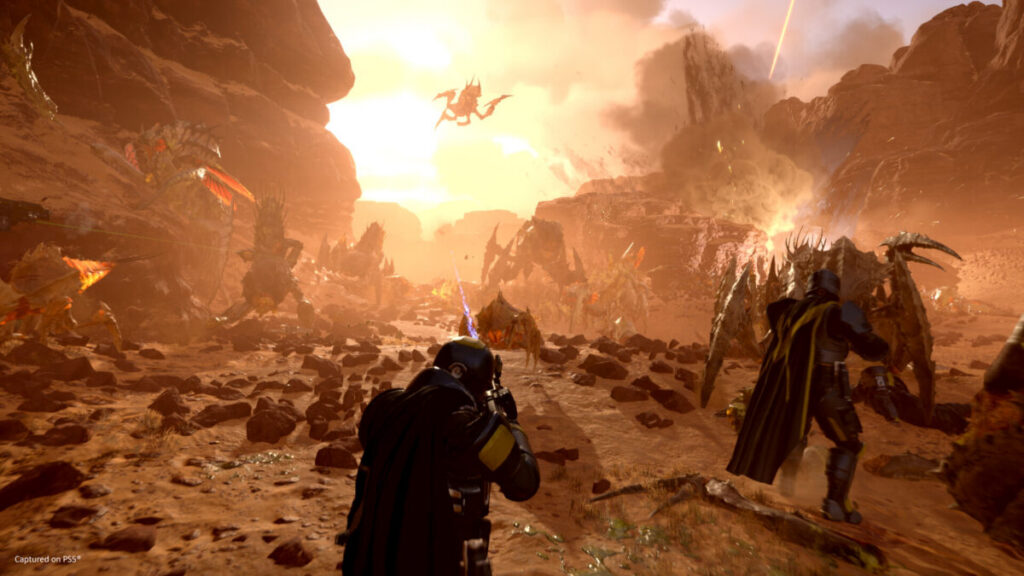
Helldivers 2 has landed, and it’s time to dive headfirst into chaos against a myriad of extraterrestrial bugs.
Whether you’re gearing up on a PS5 or a PC, there are some crucial settings tweaks that can significantly enhance your gameplay experience in Helldivers 2. Some of these settings should be activated by default, so ensure you check them out thoroughly.
Best Helldivers 2 settings for PS5 & PC
Remember Aim Mode to Per Weapon
Under the Gameplay settings, you’ll find the option to ‘Remember Aim Mode.’ Make sure to set this option to ‘Per Weapon.’ This is a game-changer as it saves you the hassle of repeatedly pressing buttons to aim with your preferred weapon. The game memorizes how you last used each weapon, assuming you’d want the same mode active the next time you wield it.
Reticle Visibility to Visible
Reticle Visibility setting is found under the HUD settings. Shifting Reticle Visibility from Dynamic to Always visible makes a world of difference. With this setting, the Reticle appears on the screen even before you aim your weapon, enhancing your aiming process as you’re essentially pre-aiming before pulling the trigger. For a personal touch, tweak the Reticle Color under Accessibility settings to make it stand out more to your liking.
Compass Ordinal Directions to Visible
Another HUD adjustment involves making compass ordinal directions (like NE, SW) always visible. Set Compass Ordinal Directions to Visible. This simplifies communication with your squad, making navigation and callouts much smoother. It’s puzzling why this isn’t the default setting.
Reduce Motion Blur
Found under Visual settings, lowering Motion Blur is advisable for a clearer view, especially in a fast-paced shooter like Helldivers 2. Playing in Performance mode with a high frame rate makes Motion Blur less necessary, potentially even obstructive.
Turn Off Depth of Field
Depth of Field is also found in Visual settings. Turning off the Depth of Field ensures that your focus remains sharp on your targets without unnecessary blurring of non-focused areas, crucial for maintaining clarity during intense gameplay.
Adjust Anti-Aliasing
Anti-Aliasing option is found under the Visual settings.